Data Sharing#
If a collaborator wants to upload data to a GCS bucket, you can follow this process to set up a service account that can be used to upload the data on their behalf:
Step 1: Create a service account#
Log into your GCP account and select the project that contains the bucket in which the data will be uploaded.
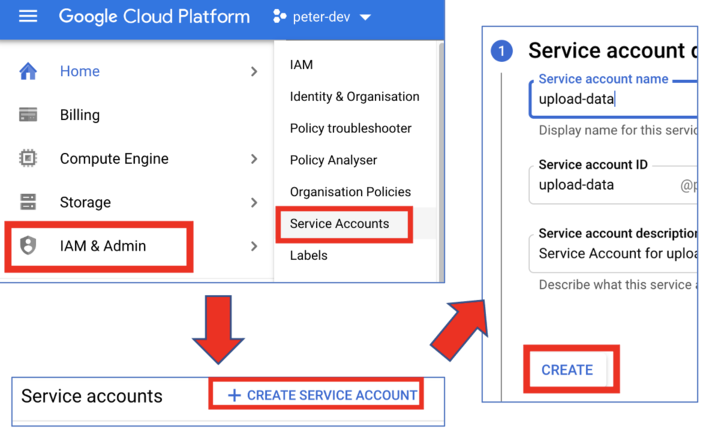
IAM & Admin→Service Accounts→Create Service Account.Fill in the service account name - the ID should be filled in automatically.
(Optional) Add a description of the service account.
Create.
Step 2: Create a key#
Locate your newly created service account in the main service account table.
Under the
Actionscolumn, select the triple dot icon, then select:Manage keys→ADD KEY→Create new key→Key type: JSON→Create.A JSON file should automatically download through your browser. IMPORTANT: this contains a private key so it should be treated as a sensitive password i.e. do not share this publicly (it’s okay to share with your collaborator; just inform them it’s private).

Step 3: Add bucket permissions#
Select the bucket in which the data will be uploaded.
Select
Permissions→ADD.Add the name of the service account you created in Step 1 under
New members.Select/find the
Storage Object CreatorRole.Save

Step 4: Upload the data#
These are the only steps needed to be followed by the collaborator:
Install the Google Cloud SDK tools (there’s also a conda package if you’re familiar with conda).
You (or the collaborator, provided you’ve sent them the JSON key from above) can then run the following:
gcloud auth activate-service-account --key-file=<project-ID-numbers>.json  # this only needs to be run once
gsutil -m cp -r data_to_upload gs://<my-bucket>/data/ # the service account only has upload permissions